Action: Feed
Also available in Deutsch, Français, Русский
{{feed
	url="https://...[|https://...|https://...]"
	[title="News feed title|no"]
		"text" - displayed as title
		"no" - means show no title
		empty title - title taken from feed
	[max="x"]
	[time=1]
		1 - show time tag of feed item
		0 - hide time tag of feed item (default)
	[nomark=1]
		1 - makes feed header h3 and feed-items headers h4
		0 - makes it all default
}}
Example
{{feed url="https://news.opensuse.org/feed/" time=1 max=2}}

Feed Title: openSUSE News
Planet News Roundup
This is a roundup of articles from the openSUSE community listed on planet.opensuse.org. This community blog feed aggregator lists the featured highlights below from Oct. 30 - Nov. 5.
This week highlights the release of openSUSE Leap 16.1, which unites traditional and immutable installations in one release, six Tumbleweed snapshots for week 44 headlined by Linux Kernel 7.3.0, KDE Plasma 6.8.1 and MariaDB 13.0.2, and the October Tumbleweed monthly update. It also covers the sixth Plasma 6.7 update, Plasma 6.8 accessibility and internationalization features, the October KDE Linux report, syslog-ng 4.13 testing, a GNU/Linux València event, the FSF’s November newsletter, Linux Saloon 226 and a journey to the openSUSE Asia Summit in Yogyakarta.
Here is a summary and links for each post:
Test syslog-ng before the 4.13 release
The blog of Peter Czanik asks readers to test nightly builds of syslog-ng ahead of the 4.13 release expected in the coming weeks. He notes that automated tests cannot cover every real-world configuration across RHEL 8, Fedora Rawhide, FreeBSD, macOS and many destinations, and highlights changes such as JSON key ordering control, GELF fixes, an AWS CloudWatch Logs HLC destination and exponential reconnect backoff with jitter.
Sixth Plasma 6.7 Update
The KDE Blog announces the sixth bugfix update to Plasma 6.7, released by the KDE Community on Nov. 3, 2026, as part of the extended support for that branch. It explains why such updates are recommended for every user and recaps Plasma 6.7 features such as per-screen virtual desktops, microphone level testing, a quick light and dark theme switch, the Vietnamese lunar calendar and drag-and-drop favorites.
Free Software Foundation Newsletter Roundup – November 2026
Victorhck’s blog translates and summarizes the Free Software Foundation’s November 2026 newsletter, linking to both the English original and the Spanish edition. It highlights the FSF’s argument that election integrity requires free software, the FSFE’s response to the European Commission’s public procurement proposal and GNU Taler’s preparations to operate in Germany.
News for Users Around the World in Plasma 6.8
The KDE Blog looks at the internationalization work in Plasma 6.8, including support for the Bikram Sambat calendar used in Nepal and the Amharic language on the virtual keyboard. Baltasar Ortega notes that Plasma is translated into more than 60 languages and explains how the Region & Language settings let users combine locale, calendar and input-method choices.
openSUSE Leap 16.1 Released
Alessandro reports in Portuguese on the release of openSUSE Leap 16.1, the first minor release in the Leap 16 series, which folds Leap Micro into Leap through a new Immutable Mode. The article walks through the traditional and immutable installation paths, Agama 24, the move to Plasma 6.6 with Qt 6.11 and Frameworks 6.25, the Linux 6.12 base, SELinux and the new openSUSE version diff tool.
Leap 16.1 Unites Traditional and Immutable Linux in One Release
openSUSE News announces openSUSE Leap 16.1, the first minor release in the Leap 16 series, which brings Leap Micro’s immutable, transactionally updated model into Leap as an installation mode selected in Agama. The announcement covers the desktop updates to Plasma 6.6 and Qt 6.11, Agama 24, the stable Linux 6.12, systemd 257 and glibc 2.40 core, the x86-64-v2 and SELinux baseline and how Leap Micro 6.2 users can migrate.
openSUSE Leap 16.1 Published
Victorhck’s blog announces the publication of openSUSE Leap 16.1, noting that users can choose between a traditional or an immutable GNU/Linux system. It explains that Immutable Mode replaces the abandoned MicroOS and Leap Micro line, covers the Plasma 6.6, Qt 6.11 and Frameworks 6.25 updates and points readers to the osdiff version comparison and openSUSE migration tools.
This Month in KDE Linux: October 2026
The KDE Blog summarizes Nate Graham’s October 2026 report on KDE Linux, a month focused on infrastructure work such as migrating OS images and the update system to KDE’s new S3-based storage and moving OpenQA to a dedicated server. It also notes a basic installer slideshow, a fix for the disk-encryption passphrase indicator, the ntsync kernel module enabled by default for Wine and Proton gaming, and new linting checks for contributors.
Ternary Compression and Speculative Token Generation
Alessandro examines the Swift Bonsai 2 Katana + MTP project, which combines ternary-weight compression, reasoning-efficiency tuning and speculative decoding in a roughly 6.40 GB GGUF model derived from Qwen3.8-27B. It separates what each component contributes, reviews the published benchmark caveats and explains how to interpret the mixed PTQ1_0 and Q8_0 file format and its memory requirements.
An Avalanche of Performance Improvements and Bug Fixes – This Week in Plasma
The KDE Blog translates Nate Graham’s latest “This Week in Plasma,” covering the bug-fix push that followed Plasma 6.8 and the work heading into Plasma 6.9. Highlights include a fix for a gaming performance regression, a cheaper zoom effect in KWin, accurate progress reporting when copying to external disks, faster network-share copies and a long list of Plasma 6.8.2 and 6.8.3 fixes.
Free Software as a Response to Techno-Oligarchy, a Talk Organized by GNU/Linux València
The KDE Blog announces a GNU/Linux València talk titled “Free software as a response to techno-oligarchy,” held with the Bloc de l’Estudiantat Agermanat on Nov. 12 at 18:00 in the Casa de l’Alumne at the Universitat Politècnica de València. The free event will cover free-software concepts, practical tools, strategies for regaining digital sovereignty and an open political debate.
Tumbleweed Monthly Update – October 2026
openSUSE News recaps October in Tumbleweed, when 23 snapshots delivered KDE Plasma 6.8.0 and 6.8.1, KDE Frameworks 6.31.0, Qt 6.12.0, Firefox 157.0.1, 158.0 and 158.0.1, and the Linux kernel’s move from 7.2.9 through 7.3.0. The monthly roundup covers major package updates such as tmux 3.8, HarfBuzz 15.0.0, MariaDB 13.0.2 and a post-quantum GnuPG, the removal of YaST from default patterns and a long list of security fixes.
Linux Saloon 226 | News Flight Early Edition
Nathan Wolf’s blog recaps Linux Saloon 226, a news-focused “early edition” episode covering topics such as Shykle’s TPM encryption work with Ubuntu, a major code-execution flaw affecting servers and Fortnite’s arrival on Linux. It also discusses Canonical’s accelerated Ubuntu Core Desktop development and shares links to the community projects mentioned on the show.
Accessibility News in Plasma 6.8
The KDE Blog reviews the accessibility improvements in Plasma 6.8, led by the new “click by dwell” feature that sends a mouse click when the pointer stops moving. Baltasar Ortega also lists the desktop’s existing aids, including visual bell alerts, sticky, slow and bounce keys, the Orca screen reader, full-screen and magnifier zoom, color inversion, pointer-location help and keyboard-only navigation.
My Plasma Desktop for October 2026 #viernesdeescritorio
The KDE Blog presents the 76th installment of its monthly “My desktop” series, showing Baltasar Ortega’s Plasma setup on a Slimbook Evo ultrabook running KDE Neon with Plasma 6.8.2, Frameworks 6.31.0, Qt 6.11.1 and Wayland on Linux 7.0. It describes the left-side panel layout, the Hanabi wallpaper created by Krystian Zajdel for KDE’s 30th anniversary and the Bare Weather widget.
Tumbleweed – Review of the Week 2026/44
Dominique Leuenberger and Victorhck detail the six snapshots (1022, 1023, 1024, 1026, 1027 and 1028) and major arrivals such as Linux Kernel 7.3.0, KDE Plasma 6.8.1, MariaDB 13.0.2, LAME 4.0, HarfBuzz 15.0.0, Ruby 4.0.9 and Firefox 158.0.1. They also cover VirtualBox 7.2.22 and zypper 1.14.102 with libsolv 0.7.41, which makes repository cache loading about 20% faster, plus staging work on GNOME 51.1, Mesa 26.2.6, Valkey 9.1.3, Wayland-Protocols 1.50, Hyprland 0.57.0 and Telegram Desktop 7.3.4.
My Journey to the openSUSE Asia Summit (oSAS) 2026 in Yogyakarta
Jim’s Computing Blog recounts James “Jim” Ed Randson’s trip from Bandung to Yogyakarta for the openSUSE Asia Summit 2026, including his first in-person meetings with contributors he had known online and his talk introducing GNU/Linux to the next generation. It also covers the conference keynotes, sessions on the Open Build Service and community building, the one-day trip and his invitation to speak at openSUSE Conference 2027 in Prague.
I Am Playing Grid Right Now!
Jakub Steiner’s blog explains how he revisited Race Driver: Grid through the RPCS3 emulator after feeling nostalgic for its arcade handling, damage model, camera work and soundtrack. The post doubles as a note to himself on making a PS5 DualSense controller work in GNOME OS, with a udev rule for the USB and Bluetooth models and commands to reload the rules and verify the device from inside the Flatpak sandbox.
View more blogs or learn to publish your own on planet.opensuse.org.
{{feed url="https://www.flickr.com/services/feeds/groups_pool.gne?id=82323459@N00&lang=de-de&format=atom" max=1 time=1}}
Feed Title: Pool von Japan Through the Eyes of Others
Japan - Nagoya
SergioQ79 - Osanpo Photographer - hat dem Pool ein Foto hinzugefügt:
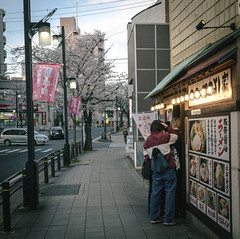
Sono le 17.40, a Nagoya.
Fuori da un ristorante di ramen, alcune persone fanno la coda. Le lampade sono già accese, ma c’è ancora luce nel cielo. I ciliegi sono in fiore e la strada conserva il ritmo tranquillo del tardo pomeriggio.
La scena è ordinaria. Non succede nulla di particolare: qualcuno aspetta, qualcuno passa, le automobili percorrono la strada. Eppure l’orario rende tutto più preciso.
In Giappone ho spesso la sensazione che non esista un momento unico e stabilito per mangiare. Si mangia quando si ha fame, oppure quando si ha voglia di quel determinato cibo. Alle 17.40, davanti a un ristorante di ramen, questa impressione diventa visibile.
Naturalmente è solo una mia impressione, non una regola generale. Ma è curioso vedere come una coda per la cena possa cominciare quando, in altri luoghi, la giornata alimentare non sarebbe ancora iniziata.
Nagoya, Aichi.
名古屋、17時40分。
ラーメン店の前で、数人が順番を待っている。店の明かりはすでについているが、空にはまだ夕方の光が残っている。桜が咲き、通りには遅い午後の静かな時間が流れている。
特別な出来事があるわけではない。人が待ち、誰かが通り過ぎ、車が走っている。ただ、撮影した時間が17時40分だと分かっていることで、この場面は少し違って見えてくる。
日本では、食事の時間があまり決まっていないように感じることがある。お腹が空いたとき、あるいは食べたいと思ったときに食べる。17時40分のラーメン店の前にできた列は、そんな印象を目に見えるものにしている。
もちろん、これはあくまで私個人の印象で、一般的な決まりではない。それでも、ほかの場所ならまだ夕食が始まっていないような時間に、すでに食事を待つ人がいることが興味深い。
愛知県名古屋市。
It is 5:40 p.m. in Nagoya.
Outside a ramen restaurant, a few people are waiting in line. The lamps are already on, but there is still daylight in the sky. The cherry trees are in bloom, and the street still has the quiet rhythm of late afternoon.
The scene is ordinary. Nothing special is happening: someone is waiting, someone is walking by, and cars are moving along the road. Yet the exact time makes everything more precise.
In Japan, I often have the impression that there is no single, fixed time for eating. People eat when they are hungry, or when they feel like having a particular kind of food. At 5:40 p.m., outside a ramen restaurant, that impression becomes visible.
Of course, this is only my personal impression, not a general rule. Still, it is curious to see a dinner queue beginning at a time when, in other places, the evening meal might not have started yet.
Nagoya, Aichi.